

Invoicing

How to create and send GST papers

Rojmed has four papers: sales invoice, purchase invoice, proforma, and quotation. Your company name and GSTIN print on each one. Here is the everyday flow.

01Step 1

Open Billing and pick the paper type

From the left menu, open Billing. Choose Sales invoice when a customer buys from you, Purchase when you buy from a vendor, Quotation when you are only giving a price, or Proforma when they need a GST-style paper before the final tax invoice.
Rojmed sidebar with Billing in the menu

02Step 2

Choose company, party, and items

Select which company is on the paper. Pick the party (or vendor for a purchase). Add invoice items with quantity, rate, HSN, and GST. Rojmed calculates the tax and the total for you.

TipProducts and services from Inventory can be picked so you do not retype rates every time.
Sales invoiceNew
Company · Party · Items
  • PartyMehta Stores
  • Cement × 10₹4,484
  • GST 18%Auto
NextSave & PDF

03Step 3

Save, then download or share the PDF

Save the paper. Pick one of the eight layouts (on sales, proforma, and quotations) and download the PDF. Your business name, address, and GSTIN appear on the print.

PDF layout8 choices
Download the paper
1 Pick a layout
2 Your GSTIN prints
3 Share the PDF

04Step 4

Track unpaid, partial, or paid

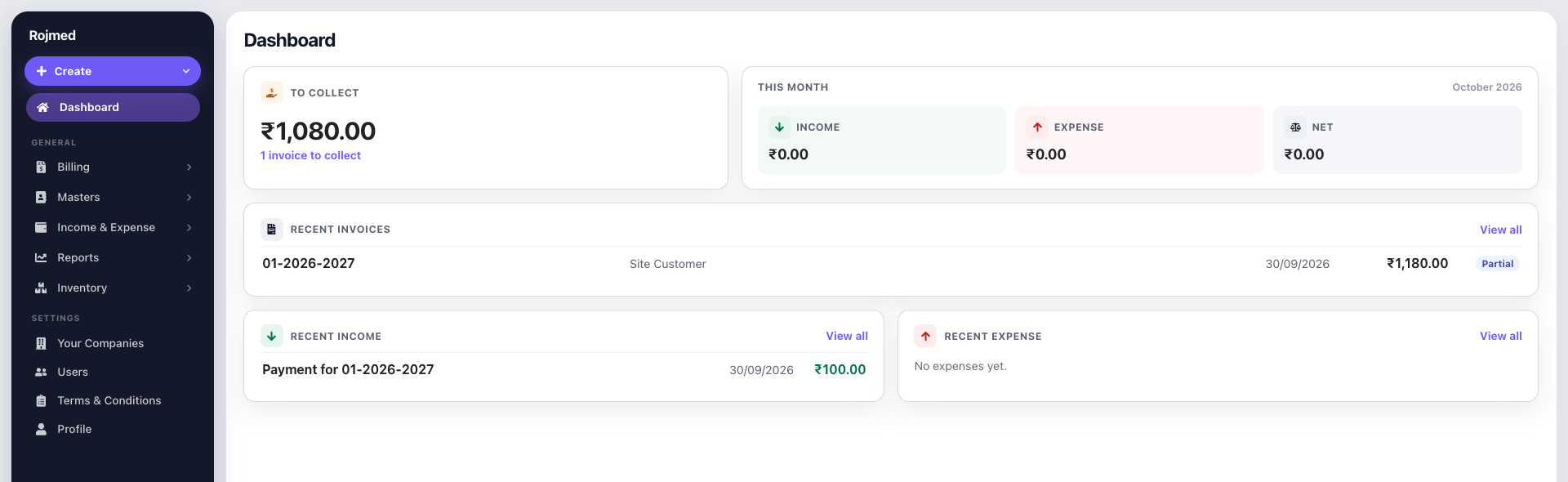
A sales invoice stays open until money comes in. When you record income against that invoice, the status moves from unpaid to partial or paid, and “To collect” on the dashboard updates.

TipPurchase invoices add product stock. Sales invoices reduce product stock.
Dashboard showing an invoice marked Partial and amount to collect

Try these steps in your account.

14-day free trial · no card needed. Sign up, then follow the guide with your own business details.