
Inventory

How to keep items and stock in order

Add products and services once. Put them on invoices. Stock moves with sales and purchases—you do not keep a separate notebook for everyday billing.

01Step 1

Add products and services

Open Inventory → Items. A product has stock quantity; a service does not. Fill name, category, SKU if you use one, HSN, GST rate, sales price, and purchase price. For products, set opening stock, unit (Nos, Kg, and so on), and a reorder level.

ItemProduct / service
Cement · 50 kg
  • HSN & GSTOn invoice item
  • Sales / purchase priceSaved
  • Reorder levelLow alert

02Step 2

Bill with those items

When you create a sales or purchase invoice, pick items from the list. Sales reduce product stock; purchases add it. Service invoice items do not change stock.

TipIf quantity looks wrong for a reason outside an invoice (breakage, count error), use an adjustment and leave a short note.
StockAutomatic
Invoice updates quantity
↓ Sales → stock down
↑ Purchase → stock up
— Service → no stock change

03Step 3

Check movements on an item

Open an item to see its movement history—what changed and whether it was a sale, purchase, or adjustment. That is how you answer “why did stock change?”

MovementsHistory
Why quantity changed
  • Sale · INV-01− 10
  • Purchase · PUR-04+ 50
  • AdjustmentWith a note

04Step 4

Use the stock statement and low-stock marks

The stock statement lists every product with quantity, unit, and value. Items at or below reorder level are marked low, and the dashboard can surface them so you reorder before you run out.

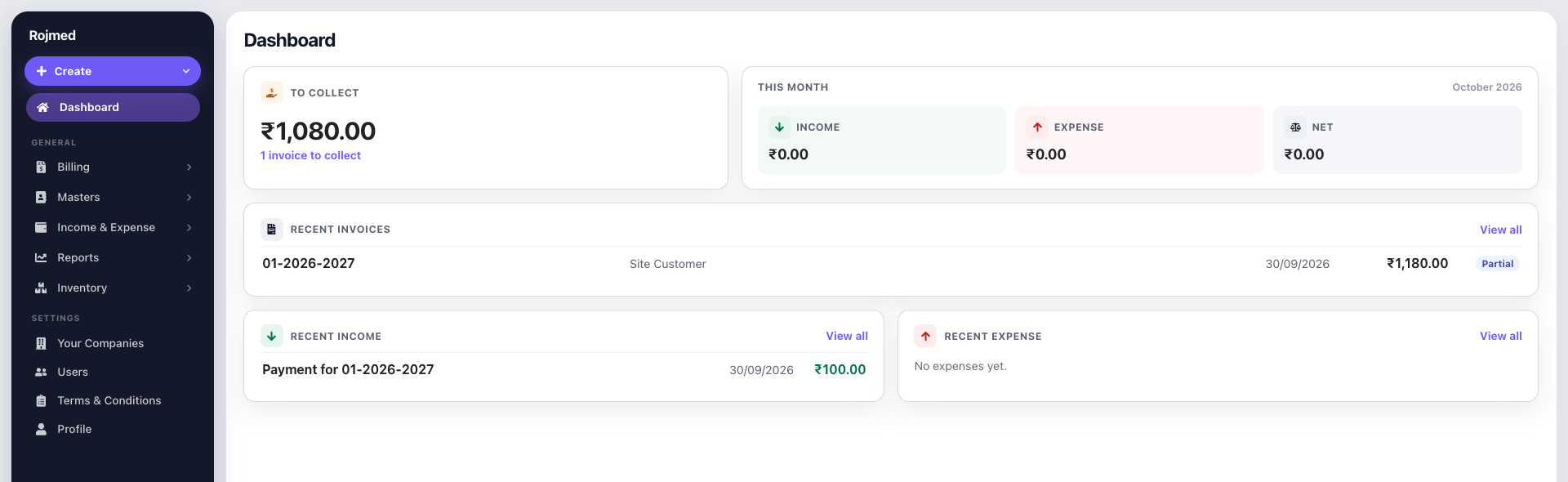
Rojmed dashboard where low stock and recent activity sit together

Try these steps in your account.

14-day free trial · no card needed. Sign up, then follow the guide with your own business details.