

Reports

How to read sales, GST, and outstanding

Reports answer three questions: how is the whole business doing, how is one customer doing, and what does their ledger look like?

01Step 1

Open Overview for the big picture

Go to Reports → Overview. Pick a company (or all) and a date range. You will see total sales and purchase, GST (output, input, and net), income and expense, what you received, and what is still to collect—plus charts by month.
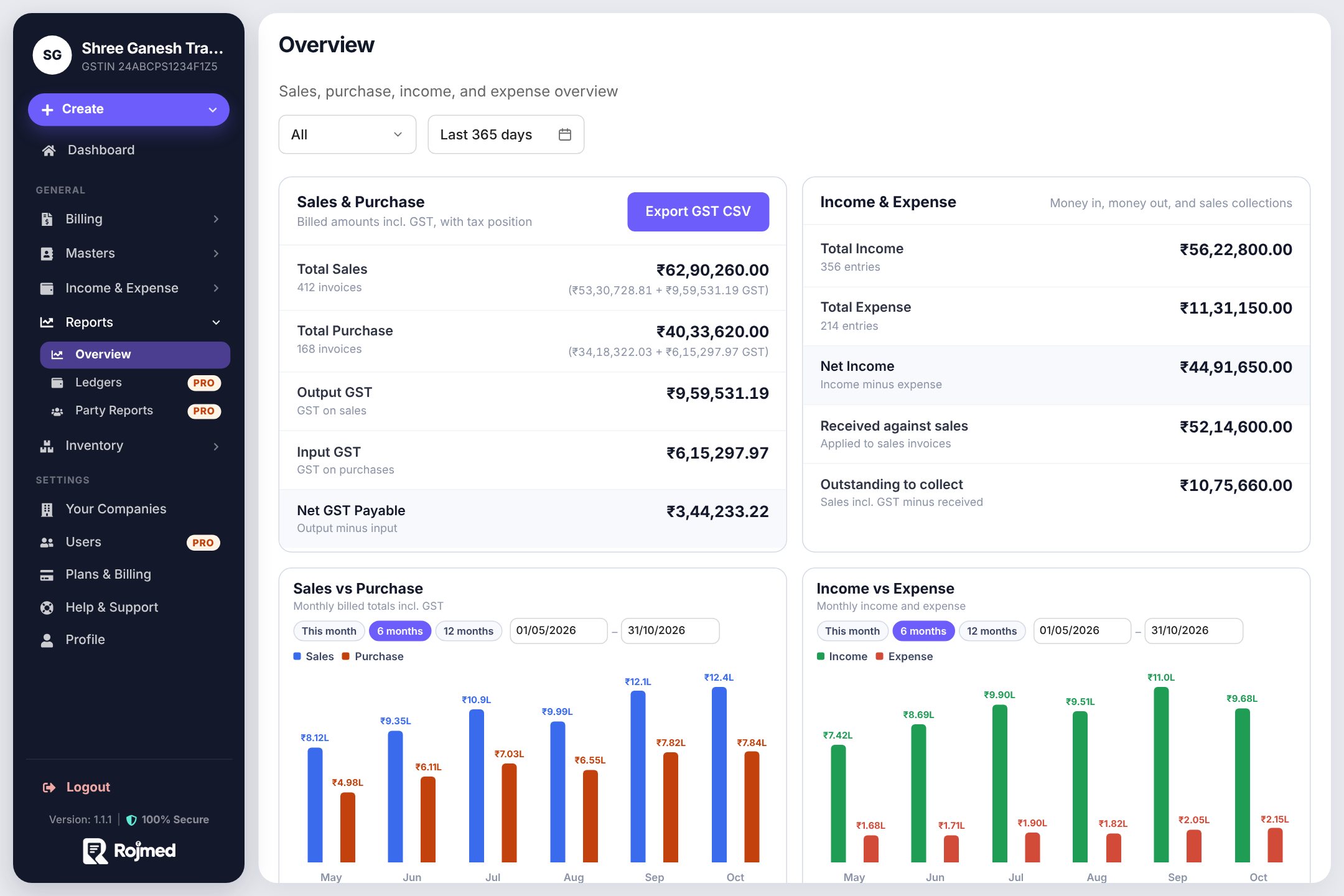
Rojmed reports overview with totals and charts

02Step 2

Use Party Reports for one customer

Open Party Reports. The left side lists parties for your date range. Click one to see what you billed them, what you received, and what is still unpaid, along with their income rows.

TipThis is for reviewing a customer—not for adding a new party. Add parties under Masters.
Party reportsOne customer
What you billed & received
  • Billed incl. GSTPeriod total
  • ReceivedAgainst sales
  • OutstandingStill unpaid

03Step 3

Open a ledger when you need a statement

Ledgers show bills and income together for one party. You can narrow to bills only or income only, then download a PDF to share with the customer.

LedgerPDF ready
Bills + income together
  • INV-01+ ₹6,183
  • Receipt− ₹4,000
  • FilterAll / bills / income
ShareDownload PDF

04Step 4

Match the dates to the question you have

Use this month when you want a quick pulse. Use a custom range for GST season, a project period, or a year-end review. The same filters work across overview and party views.

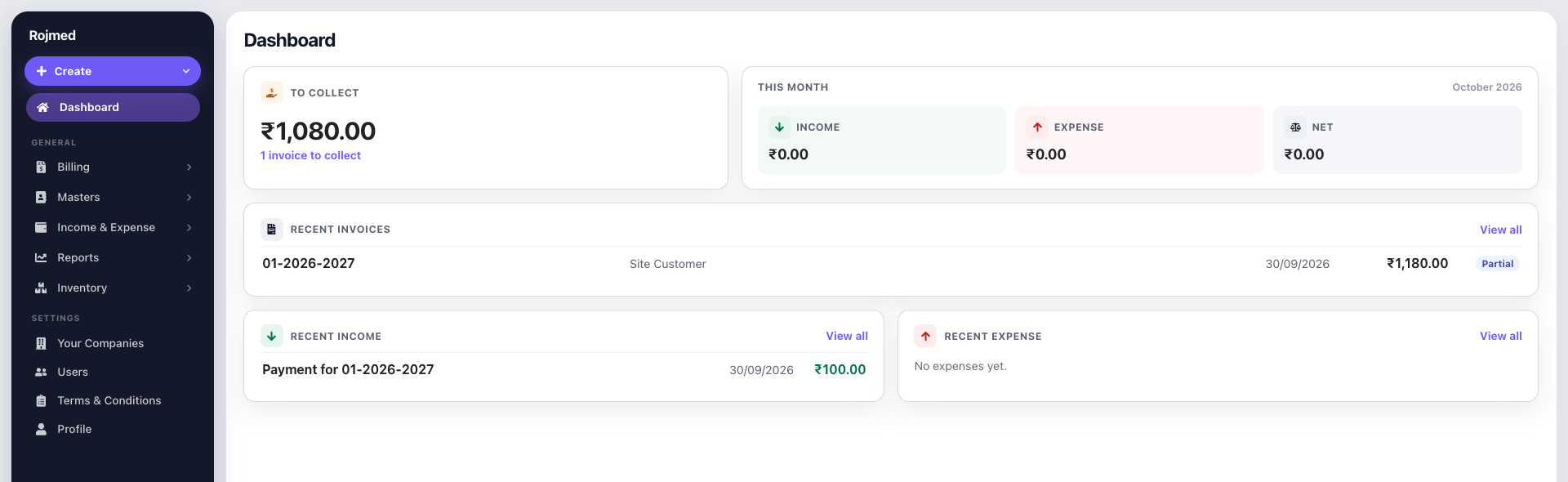
Dashboard numbers that match what you will see in reports

Try these steps in your account.

14-day free trial · no card needed. Sign up, then follow the guide with your own business details.